
Pick up where work left off.
Bring client information, intake, documents and follow-ups into one workspace. TAAX AI keeps it all organized.
Explore client management →Keep client details, staff calendars, documents, tasks and billing connected. Let TAAX Ai help your team review priorities and prepare the next step.
7 days free · No credit card required · Free Basic plan after trial unless you purchase.
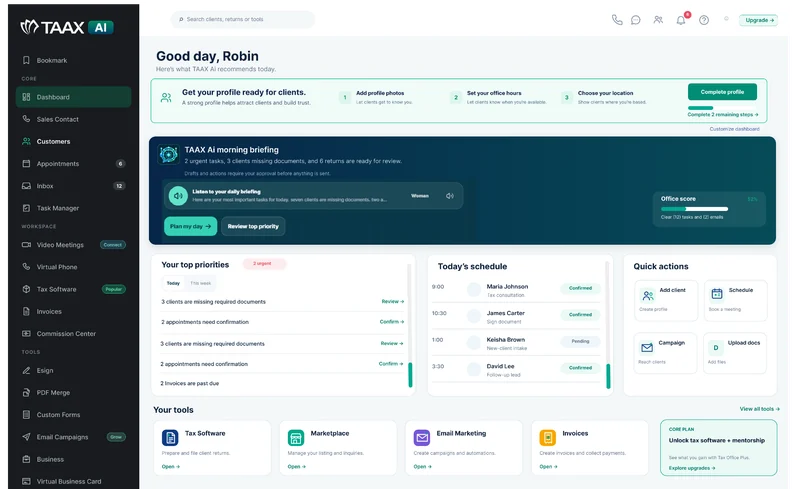
Your connected workspace for everyday office work.
Whether your office is established or adding staff, start with the work your team already does every day.
Bring client information, intake, documents and follow-ups into one workspace. TAAX AI keeps it all organized.
Explore client management →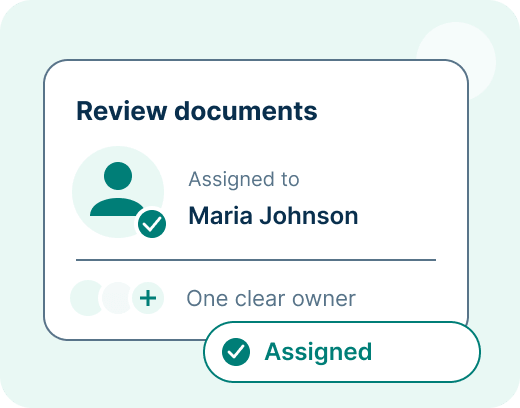
Organize appointments and assign tasks so the next person knows what needs attention.
See staff scheduling →Use your dashboard to review appointments, tasks and billing before choosing your next action.
Explore the dashboard →Configured automation keeps routine reminders moving. TAAX Ai helps your team review office information, identify what needs attention and prepare follow-ups for review.

Review office priorities, upcoming appointments and open work to find a useful starting point.
Ask about a customer’s documents, forms, notes, appointments, tasks and invoices.
Review assigned or overdue work and use the assistant to help prepare tasks and appointment details.
Review incomplete intake, client documents and signatures still waiting for a response.
Find open balances, past-due invoices and drafts, then prepare a client reminder for review.
Prepare client messages, file notes and follow-up tasks. Review and approve AI-prepared actions before they are saved or sent.
TAAX Ai brings relevant office work into the conversation so your team can choose the next action.
AI access and actions follow the account’s permissions, plan and available credits. Scheduled automation and AI-prepared actions are different: review AI drafts before approving them.
Follow a customer from intake and assignment through team chat, customer communication, documents and billing. Choose a step in this illustrative workflow using sample information.
Jordan uploads a document. TAAX AI reads its contents, identifies the document type and period, and suggests a clear filename. File it to the customer’s folder using your office’s rules, with review when required.
Suggested filename
W2_2025_Jordan-Parker.pdf
File to Jordan’s Tax documents folder using your office’s filing rules.
Read → Label → File
Organized with the customer’s records.
Tools: TAAX AI and Document Manager.
Ask TAAX AI to review Jordan’s client context and help prepare the next task. Choose the responsible colleague, confirm the due date and pass along project notes so the next person can pick up the work.

Review the uploaded W-2, check intake progress and update the next step.
Tools: TAAX AI, client management and Task Manager.
Keep handoffs and office updates in one team conversation. Staff can stay connected from the pro dashboard or pro mobile app.
Fewer internal email threads and phone calls.
Jordan’s intake is ready, and the uploaded documents are in the client folder. I’ve assigned the project to the preparation team.
I’ll review the file and ask Jordan for the missing income statement through customer chat. I’ll update the project notes when it arrives.
Please tag me when the documents are complete. I’ll review the file and leave any questions with the project so everyone has the same context.
I’ll check the saved time entries and prepare the draft invoice after the review. The team can confirm the services and amount before it is sent.
Tool: internal team chat.
Keep document questions and next steps in customer chat. Your team can use the pro dashboard or pro mobile app; customers can reply from the client portal or customer mobile app.
Cut down on follow-up emails and phone calls.
Hi Jordan, we’ve reviewed your intake. Please upload the missing income statement to your client folder before our appointment.
I’ve uploaded the statement and the supporting document. Can you confirm that everything came through?
Thank you, both files are in your folder. I’ve updated your project and let our reviewer know the documents are ready. We’ll message you here if anything else is needed.
Great, thank you for the update. I’ll keep an eye on this conversation and see you at our scheduled appointment.
Tools: customer chat, the client portal and customer app.
Ask TAAX AI to review Jordan’s uploaded files, incomplete intake forms and pending signatures. Use that context to prepare a clear follow-up, then review the recipient and message before sending.
Documents, forms and signatures in one client context.
Hi Jordan, thanks for uploading your W-2. Please finish your intake form and review the engagement letter before our appointment. Let us know if you need help.
Tools: TAAX AI, Document Manager, custom forms and E-signatures.
Track time when needed, then stop and save the session. Ask TAAX AI to prepare a draft invoice using the customer, service, amount and due date you confirm. Review the hours, rate and invoice before sending. AI can also help review unpaid balances and draft payment follow-ups.
Confirm the customer and billing details before continuing.
Jordan Parker · Bookkeeping review
45 minutes · $120/hour
 NORTHSTARTax & Accounting
Due Friday · Jordan Parker
Tools: TAAX AI, time tracking and Invoice & Billing. You can bill services without using the timer.
Keep your existing filing software with Premium or Office Team. Choose Tax Office Plus only when you want our tax software.
Office workflow and AI tools, with the filing software you already use.
A shared office workspace for colleagues, customers and daily work. No bundled tax software.
Choose office workflow together with professional tax software and provider activation.
Adding colleagues? Additional full team users are $39/month or $324 billed annually, including shared office collaboration. Limited view-only/admin support users are $20/month or $120/year, with abilities set by the owner and the option to upgrade. Compare user options.
Office Team is $149/month or $1,251.60 billed annually for 5 seats. Tax software, network office management, fee splitting and affiliate rebates are separate options. Purchased tax software supports unlimited tax preparers; seats remain separate. Existing subscribers retain their purchased benefits.
Choose one repeatable process, try it with a colleague, then bring over more work once it fits your office.
Moving from another system? Keep the original records available during your pilot. Start with one sample client and confirm import formats, record types and any assistance with the TAAX team before transferring larger sets of data.
Begin with intake, appointments, documents or invoicing.
Use your existing office account. Confirm the seat allowance and choose each colleague’s access with the owner.
Add a sample client, assign a task and check the next step together.
Review what worked before adding more staff and client records. Keep time tracking optional when it is not part of your process.
Yes. Premium and Office Team work with the filing software you already use. Office Team includes 5 full seats. Tax software is optional: choose Tax Office Plus or discuss a separate tax-software add-on.
No. Unlimited users in purchased tax software are separate from dashboard access. Tax Office Plus includes 3 seats; Office Team includes 5 seats and does not bundle tax software. Additional full team users are $39/month or $324/year.
Limited view-only/admin support users can help with data collection and administrative work, with abilities set by the owner. This access costs $20/month or $120/year and can be upgraded.
Explore all office tools and AI automation free for 7 days without a credit card. After the trial, keep the free Basic plan unless you purchase. Live tax software and onboarding require a qualifying purchase and provider activation. Optional add-ons have separate access and charges.
Bring your team size, current tools and the workflow you want to improve to an office demo. Confirm which records and formats can be imported before exporting or transferring client data. An automatic migration of your entire system is not promised.
Start with your team’s workflow, then choose the tools and access you need.

